
How to use your files in ChatGPT, Claude and Gemini CLI

In FilmScribe, open the Connections tab of your Profile and copy the connector address. In the assistant, add a connector with that address, sign in to your account and click Allow. Then ask for what you need in plain sentences, like finding a passage across all your files or rendering clips. By default the assistant only reads your files; if you check the option, it also creates, edits and deletes what you ask for.
Step by step
-
Step 1: Open Connections
In FilmScribe, open Profile and the Connections tab. Copy the Connector address with Copy. The address shows up only here, inside your account.
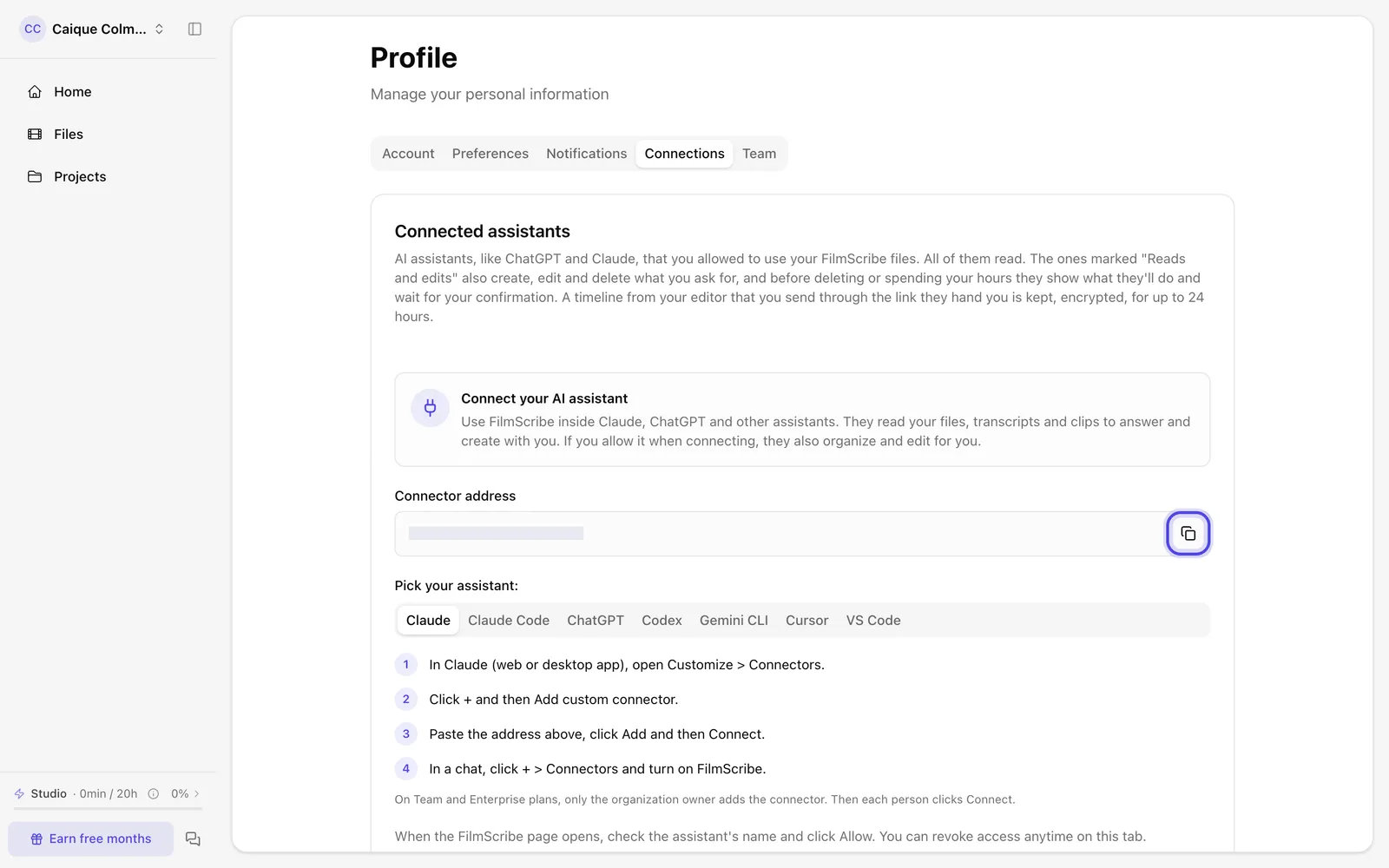
App screenshot The Connections tab, with the connector address covered in this screenshot. -
Step 2: Follow your assistant's steps
Right below the address, open your assistant's tab: Claude, Claude Code, ChatGPT, Codex, Gemini CLI, Cursor or VS Code. Follow the steps to add the connector with the address you copied.
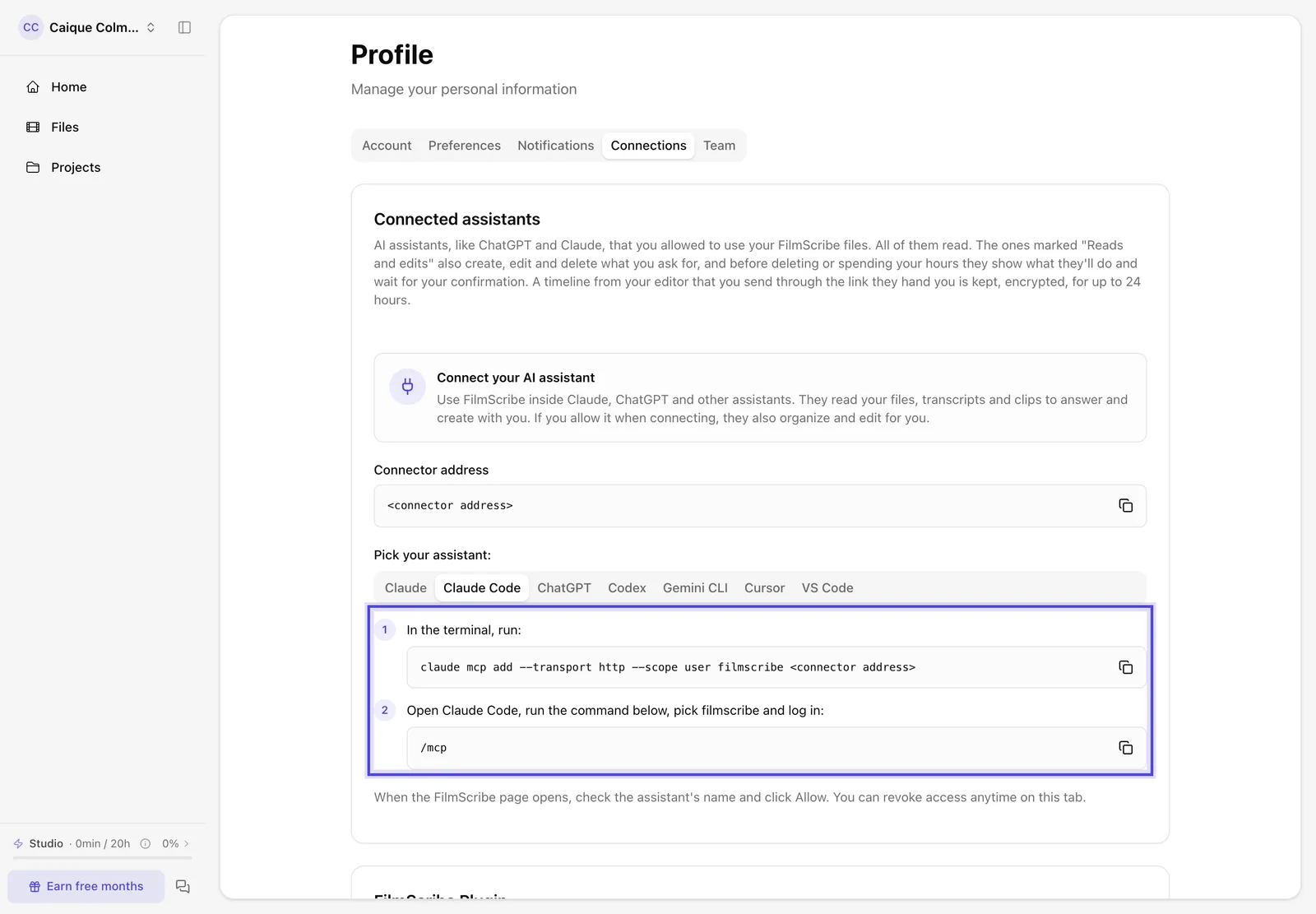
App screenshot Claude Code's steps, with the address replaced by a placeholder in this screenshot. -
Step 3: Allow access
When the FilmScribe page opens, check the assistant's name and click Allow.
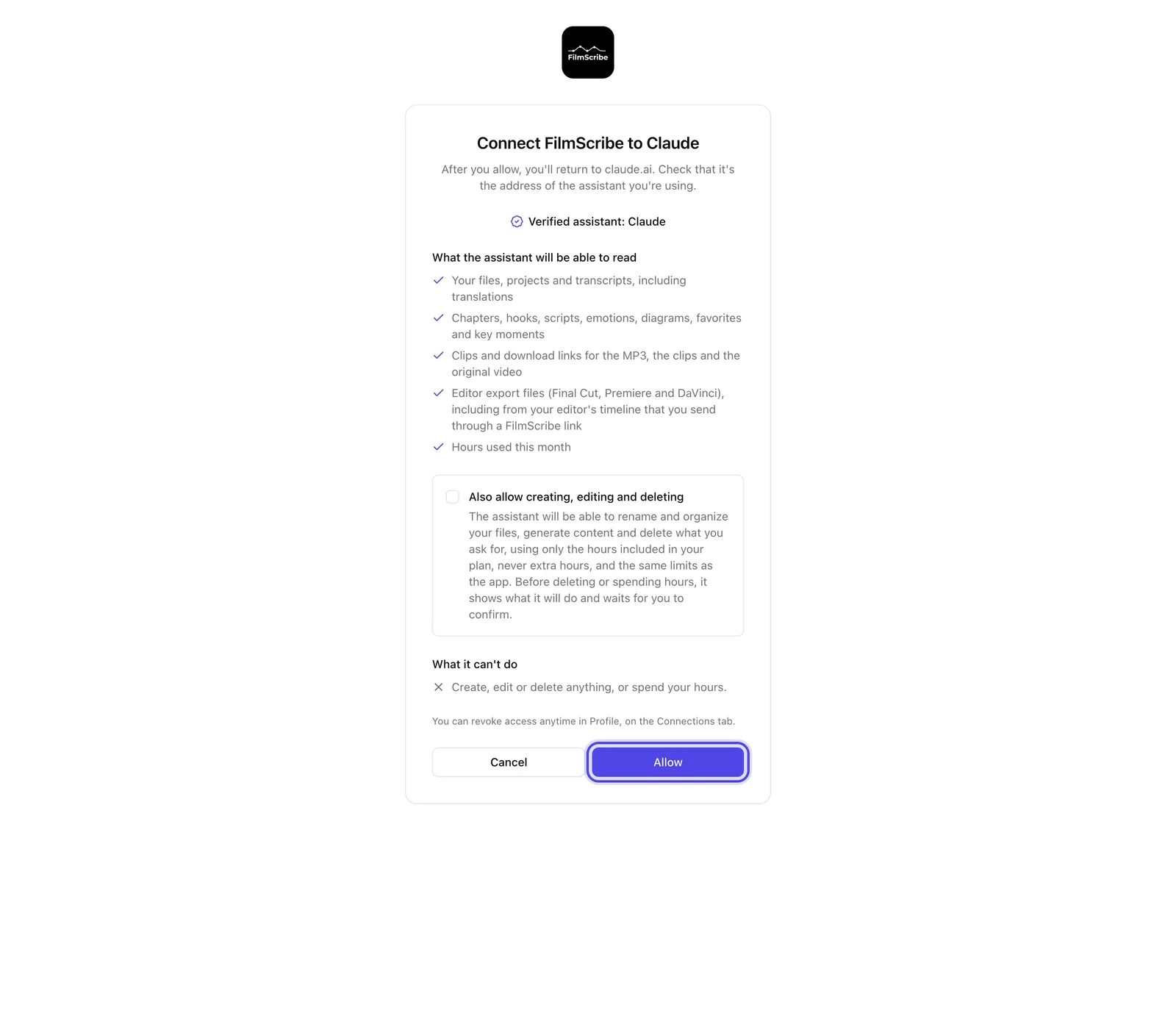
App screenshot The permission page, with the verified assistant and Allow. -
Step 4: Make your first request
Go back to the assistant and write what you need, mentioning FilmScribe. To get started, copy one of the ready-made requests in this article.
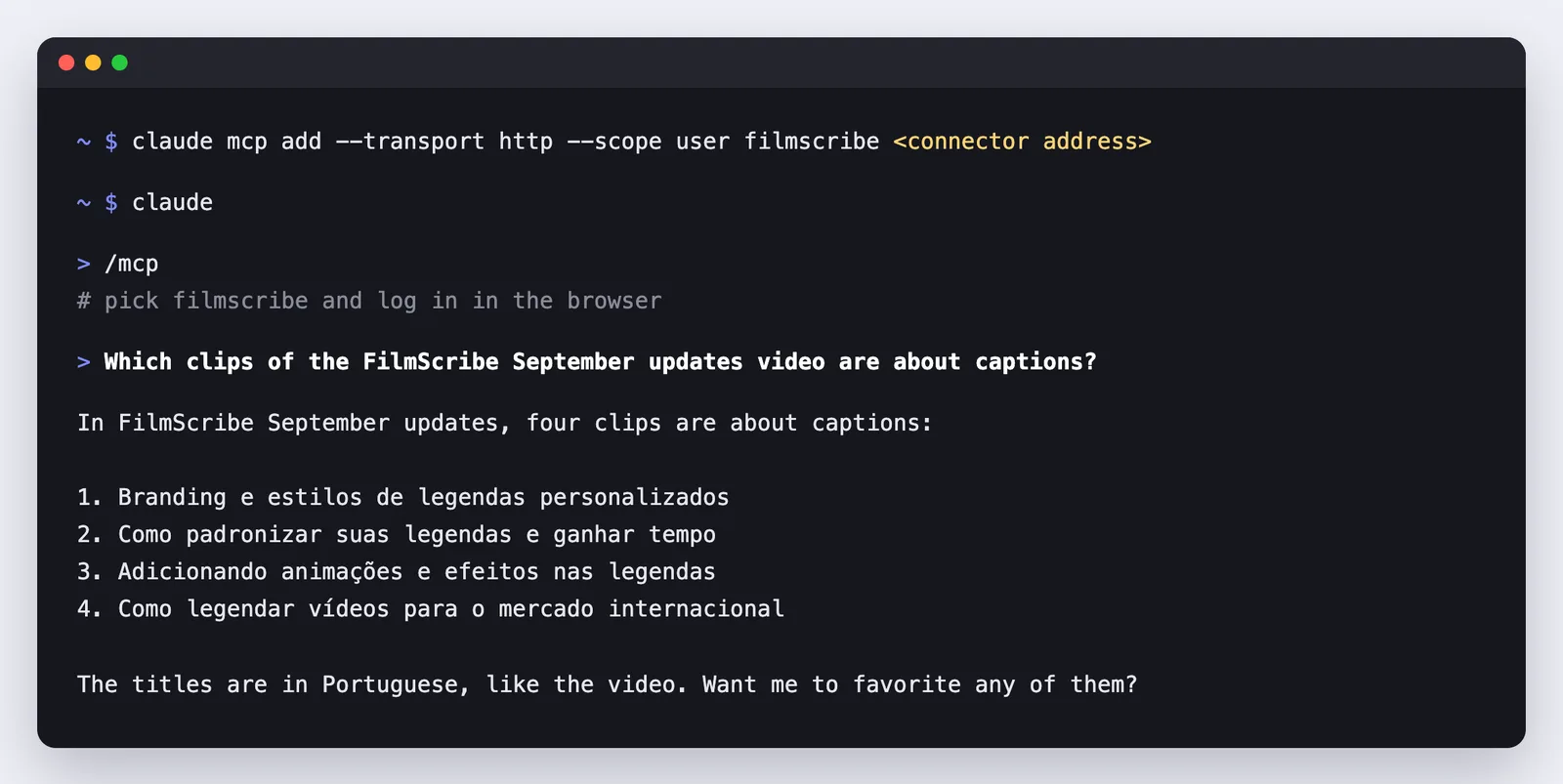
Example Example: the connector added in the terminal, logging in and a question about a video's clips.
Optional steps
You don't need these steps to finish the task. Use them if you want.
-
OptionalLet the assistant organize and create
On the permission page, check Also allow creating, editing and deleting. The assistant can then organize your files and generate content, using only the hours included in your plan, and shows what it will do before deleting anything or using hours.
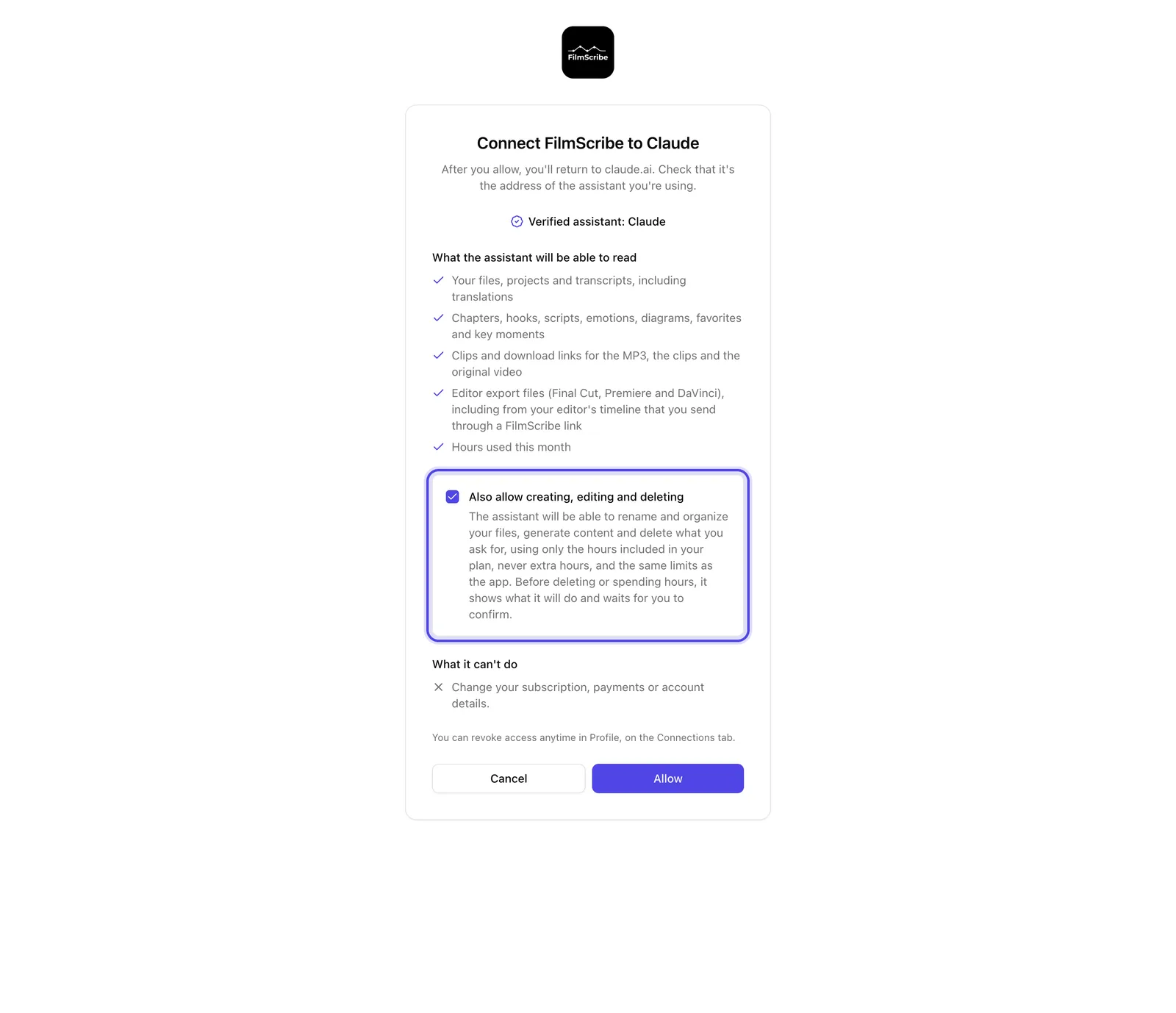
App screenshot Also allow creating, editing and deleting, checked. -
OptionalConfirm in the app before a file is deleted
The assistant never deletes a file by itself. When the assistant's app doesn't ask you on its own, it shows a link to a FilmScribe page. Open the link, sign in to your account, check the file's name and click Delete file. The link is valid for 10 minutes and only works for the person who connected the assistant. If you didn't ask for it, close the page: nothing is deleted.

App screenshot The page that asks for your yes, with the file's name and Delete file. 
App screenshot After your yes: the file is deleted and you can go back to the conversation. -
OptionalSee what was done and revoke
In Connections, What assistants changed lists the changes they made. To remove access, click Revoke.
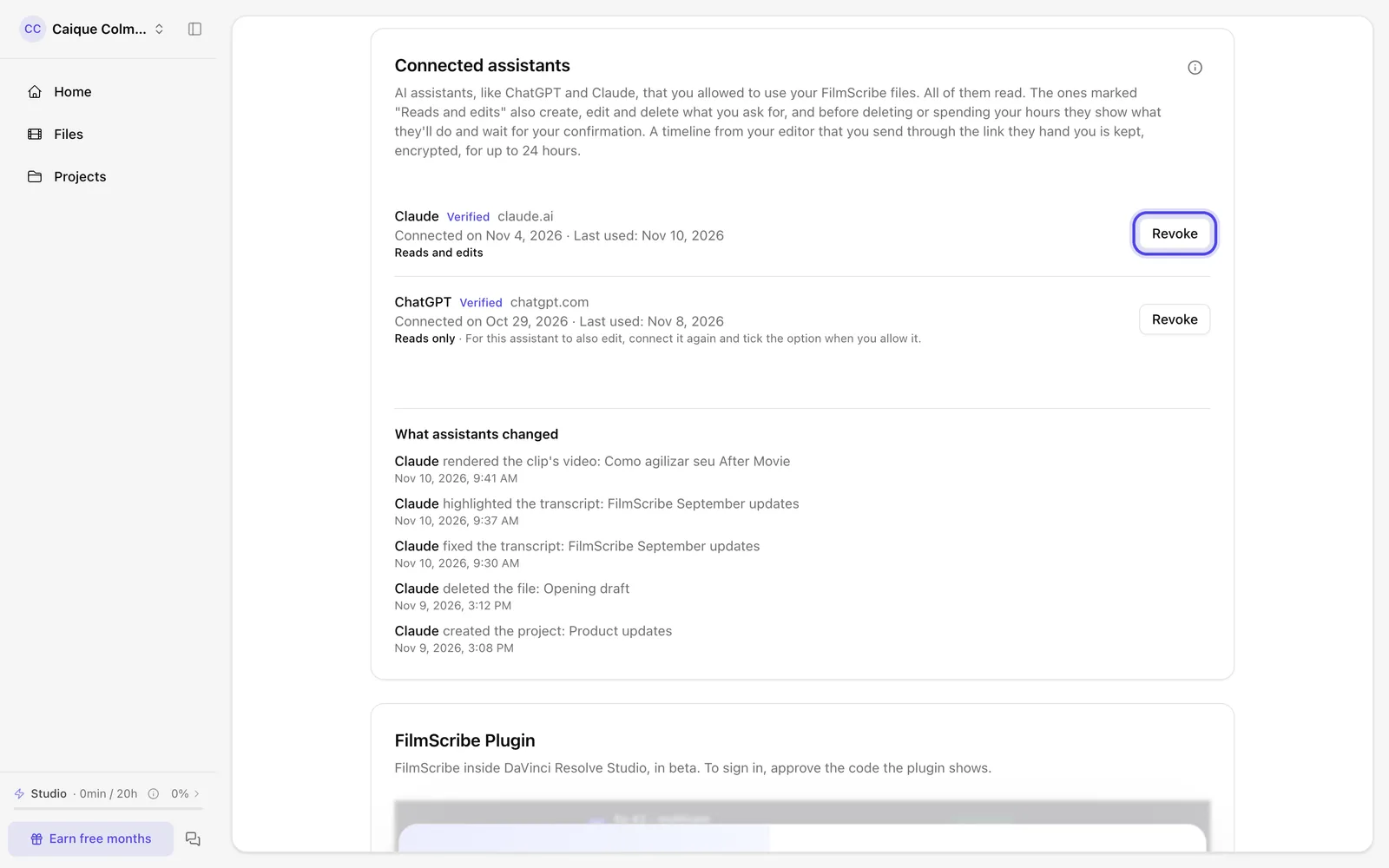
App screenshot Two connected assistants, what they changed and Revoke.
Ready-made requests
Copy the request, replace what is in brackets and paste it into the conversation with your assistant. Requests tagged as needing permission to edit only work if you checked Also allow creating, editing and deleting when you connected. The connector already hands some of these requests to the assistant, and assistants that show that list let you pick one without typing.
-
Find a passage across all your files
Search all my FilmScribe files for where I talked about [topic]. Show the file name, the time and the sentence of each result.
-
See a file's best clips
List my most recent FilmScribe files and ask me which one to use. Then show me that file's best suggested clips, highest impact first, with why each one works and the link to open it in the app.
-
Render and download a batch of clips with a template Needs permission to edit
In the FilmScribe file [file name], render the 5 best clips in vertical (9:16) with the template [template name]. Once they are ready, give me one .zip link with all of them.
-
Fix the transcript Needs permission to edit
In the FilmScribe file [file name], replace [wrong word] with [right word] across the whole transcript and tell me how many replacements you made.
-
Highlight passages Needs permission to edit
In the FilmScribe file [file name], highlight in pink the lines about [topic] and name the pink color [color name].
-
Translate the subtitles Needs permission to edit
List my most recent FilmScribe files and ask me which one to use and which language to translate into. Translate that file's subtitles and give me the SRT file once the translation is ready.
-
Download the subtitles as SRT
Give me the SRT subtitles of the FilmScribe file [file name], with at most 42 characters per line and 2 lines.
-
Organize your files into projects Needs permission to edit
Create a FilmScribe project called [project name] and move into it my files that talk about [topic]. Show me the list before moving.
-
Name the speakers Needs permission to edit
In the FilmScribe file [file name], work out who each person is from what the recording says and show me the suggestions. Only rename the ones I approve.
-
Write a teaser script Needs permission to edit
List my most recent FilmScribe files and ask me which one to use. Then write a teaser script of about 60 seconds from that file and show it to me once it is ready.
-
Build a timeline of your favorites
List my most recent FilmScribe files and ask me which one to use and which editor I use (Final Cut, Premiere or DaVinci Resolve). Then build a timeline from my favorite passages of that file and give me the link to the project file.
-
Import a YouTube video Needs permission to edit
Import this YouTube video into FilmScribe: [link]. Before transcribing, show me its length and how many of my plan's hours it will use.
-
Ask how to do something in FilmScribe
How do I [task] in FilmScribe? Check the FilmScribe help center and give me the link to the article.
-
See this month's hours
How many FilmScribe hours have I used this month and how many do I have left?