
How to choose the clip's format and framing

In the Download clip window, choose the format in Output format: 9:16 for Reels, TikTok and Shorts, 1:1 or 4:5 for the feed and 16:9 for YouTube. In any format other than Original, Framing shows up: with Motion tracking on, the camera follows whoever is speaking.
Step by step
-
Step 1: Open Download clip
On the Clips page, click Download clip on the clip's card.
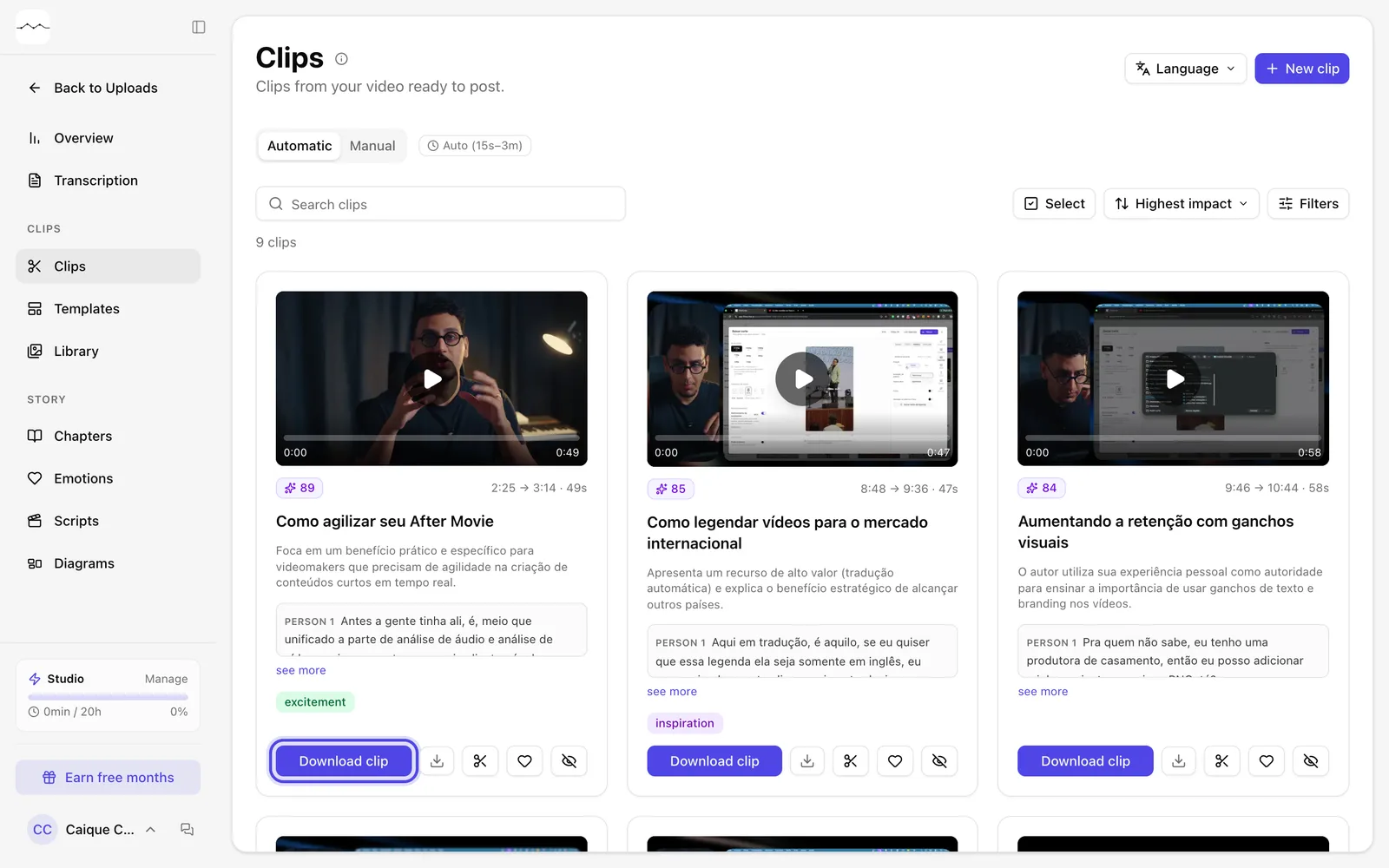
App screenshot The Download clip button on the card. -
Step 2: Choose the format
In Output format, click Original, 16:9, 9:16, 1:1 or 4:5. Below the buttons you see what the format is for and the output size.
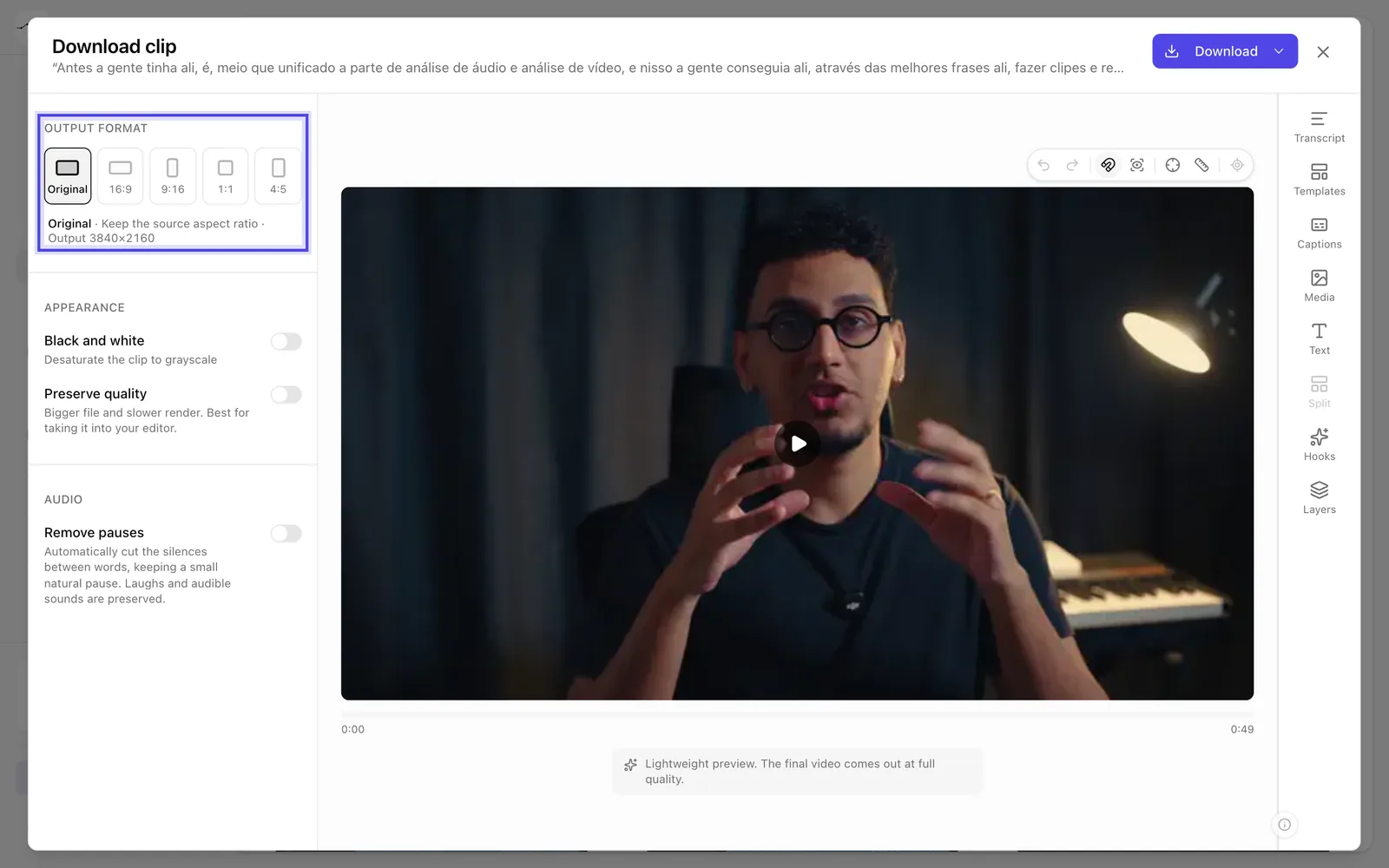
App screenshot The output formats. Original keeps the video's format. -
Step 3: Check the framing
In 9:16, 1:1, 4:5 and 16:9, Framing shows up, with Motion tracking already on: the camera follows whoever is speaking, and after you press play the preview shows that framing in a few moments. When it's off, the clip uses a fixed center crop.
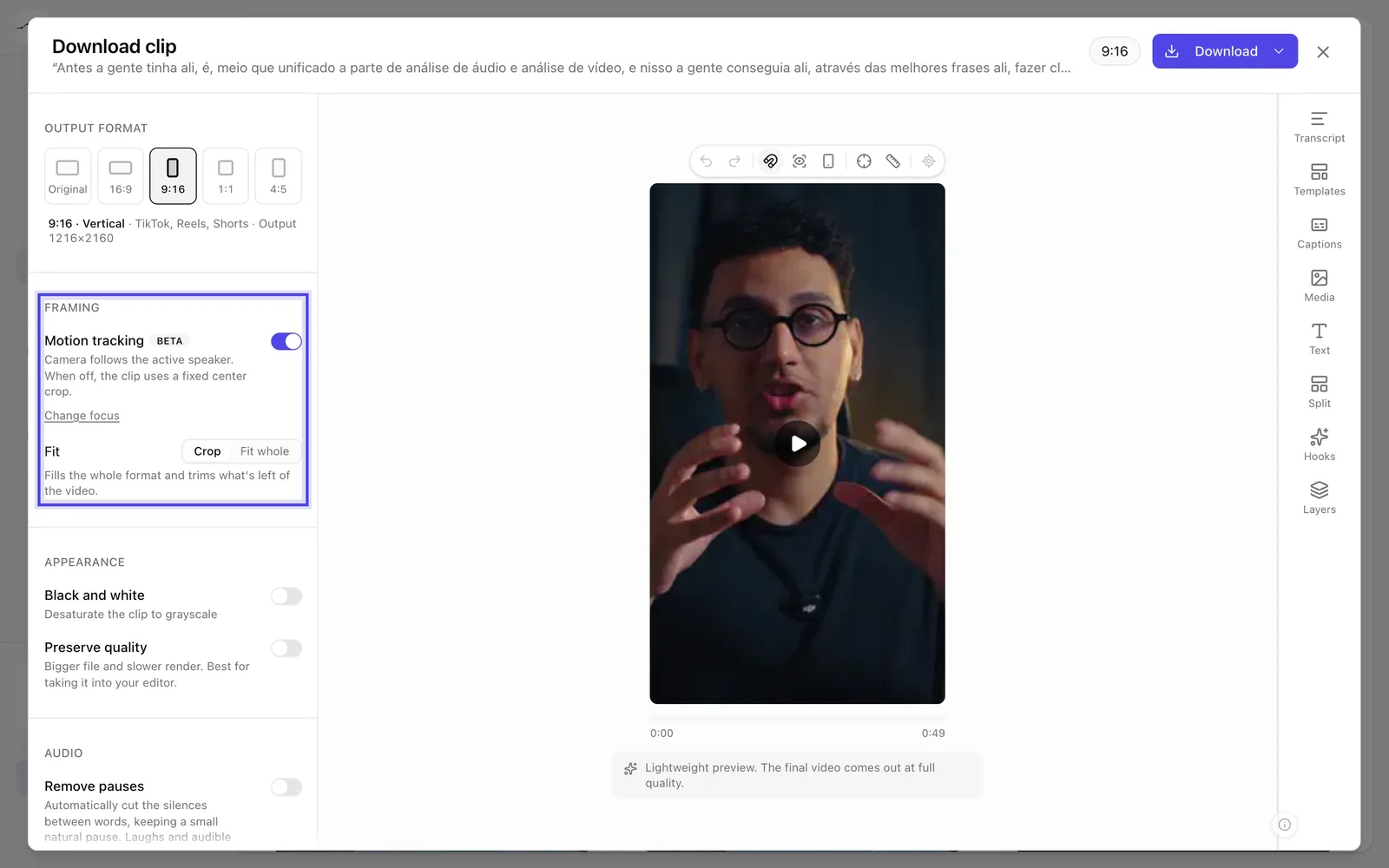
App screenshot Framing with Motion tracking turned on; the preview already follows the speaker.
Optional steps
You don't need these steps to finish the task. Use them if you want.
-
OptionalChoose who the camera follows
If the preview doesn't follow the right person, click Change focus and drag over the frame to mark the person the video should follow.
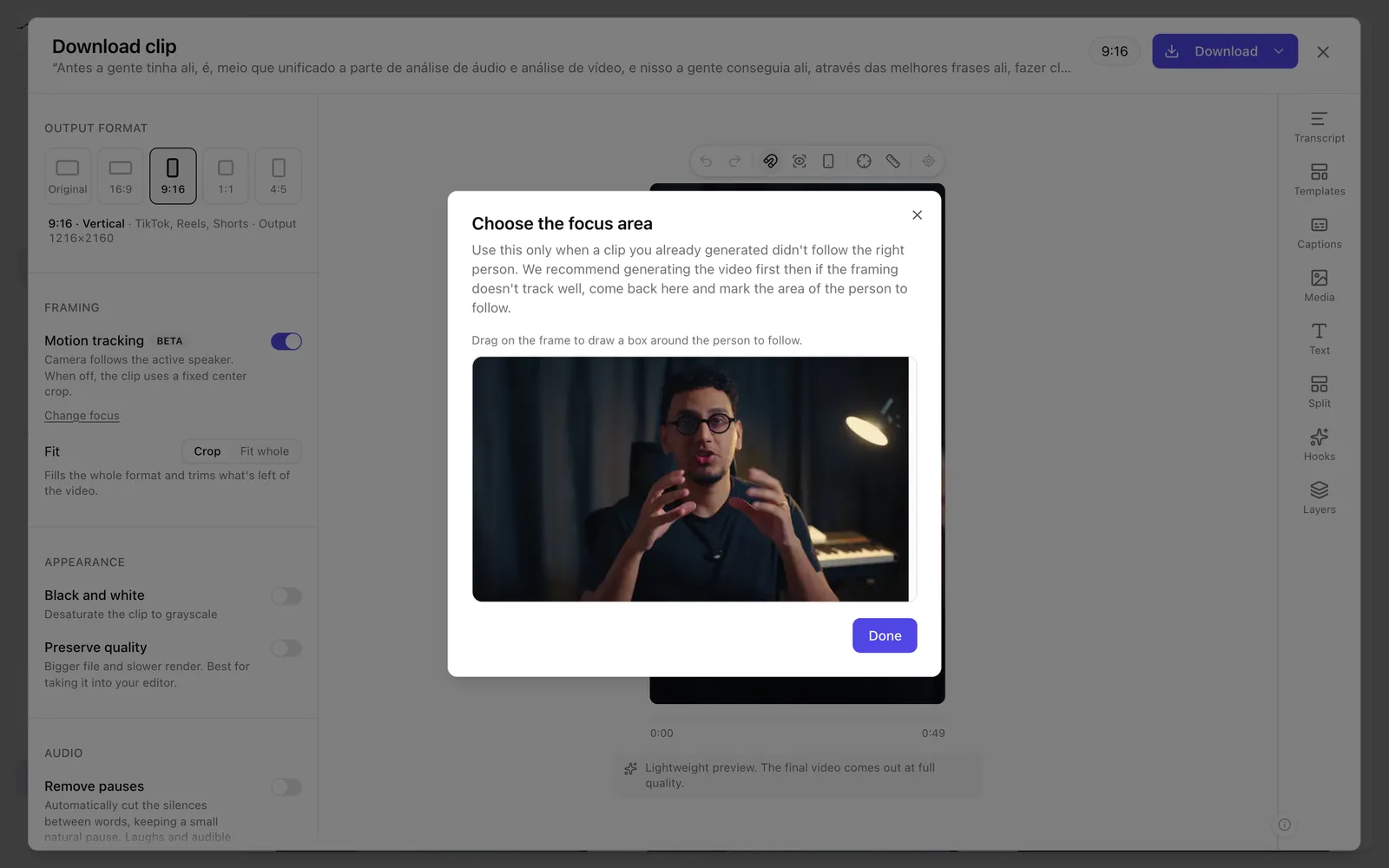
App screenshot The Choose the focus area window. -
OptionalShow the whole video with Fit whole
When the video's shape differs from the format's, Fit shows up right below Motion tracking. Crop fills the format and trims what's left over. Fit whole shows the whole video and fills the leftover space with a Background: Blurred or Colour, with any colour or a two-colour gradient. With Fit whole, the camera doesn't follow anyone, because the whole frame is already on screen.
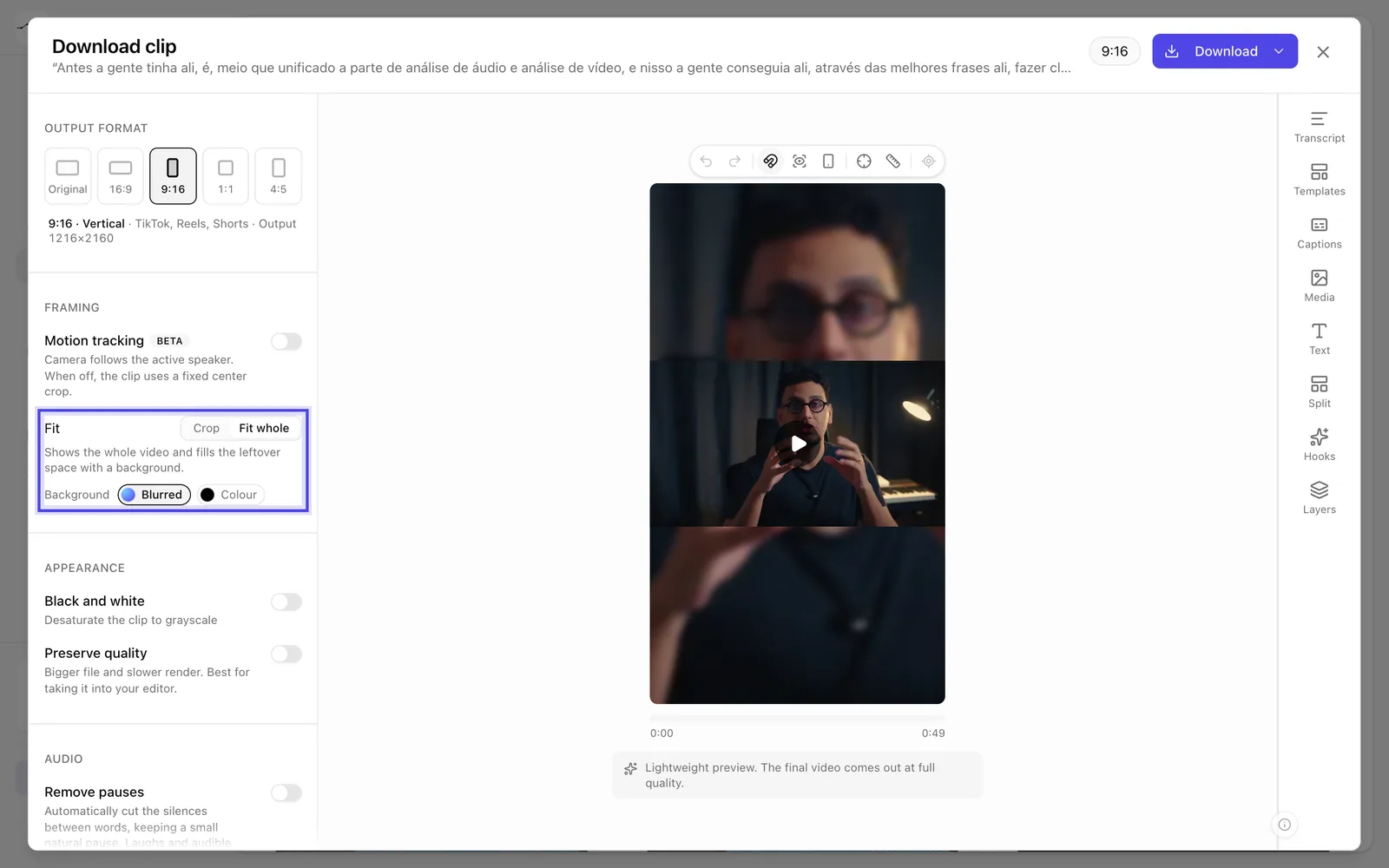
App screenshot Fit whole with a Blurred background in 9:16. The preview already shows the whole video. -
OptionalUse hard cuts or a split screen between speakers
When the passage has two or more people speaking, Hard cuts between speakers and Split screen between speakers show up.
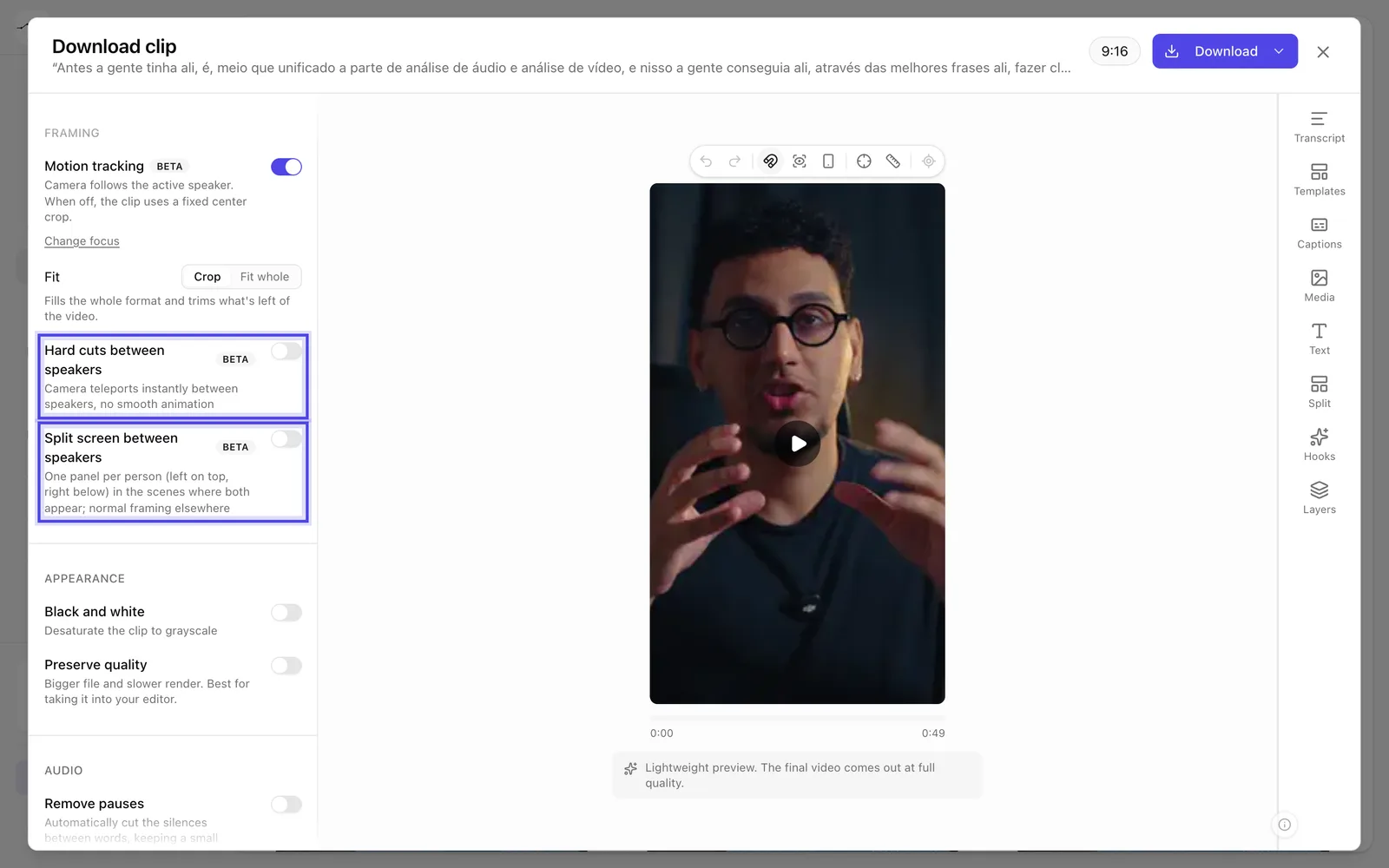
App screenshot Hard cuts between speakers and Split screen between speakers, in a passage with two people talking (example data).