
What to do when your payment is declined

When a charge is declined, the Subscription page shows Payment Pending, with the Pay invoice, Change card and Change plan buttons. While the payment is pending, you can still see your files, but you can't upload new files, download or make changes. Sort out the payment to use everything again.
Step by step
-
Step 1: Open Subscription
Click your name, at the bottom of the menu, and open Subscription. The plan shows as Payment declined, and the Payment Pending notice brings the options.
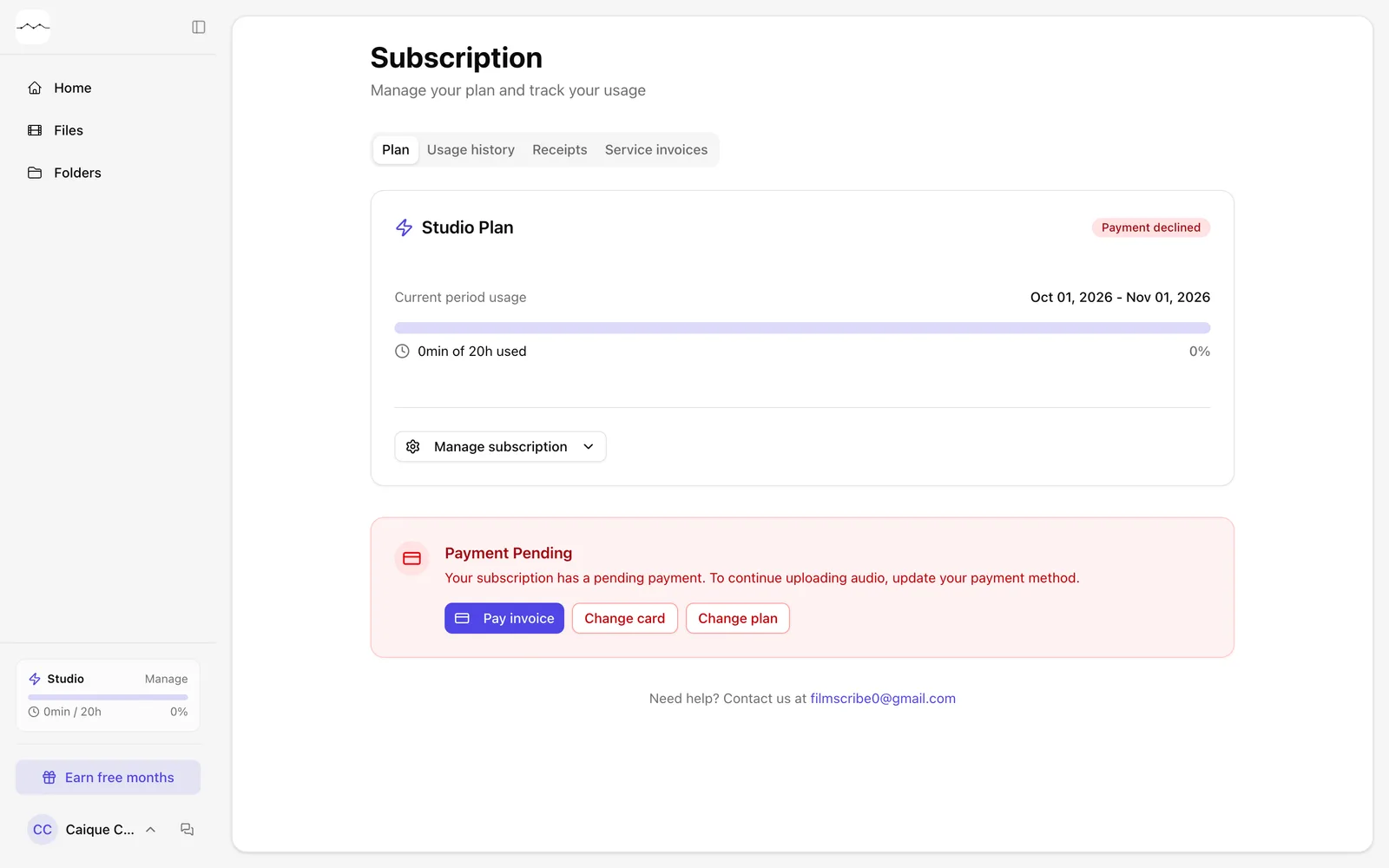
App screenshot The Subscription page with the Payment Pending notice. -
Step 2: Sort out the payment
Click Pay invoice to try again, Change card to use another card or Change plan to switch plans. While the payment is pending, you can switch to a plan that costs the same or less; to move up, pay the invoice first. To pay without a card, click Pay with Pix: the QR code pays the charge on the spot, and the next ones go through Pix Automático.
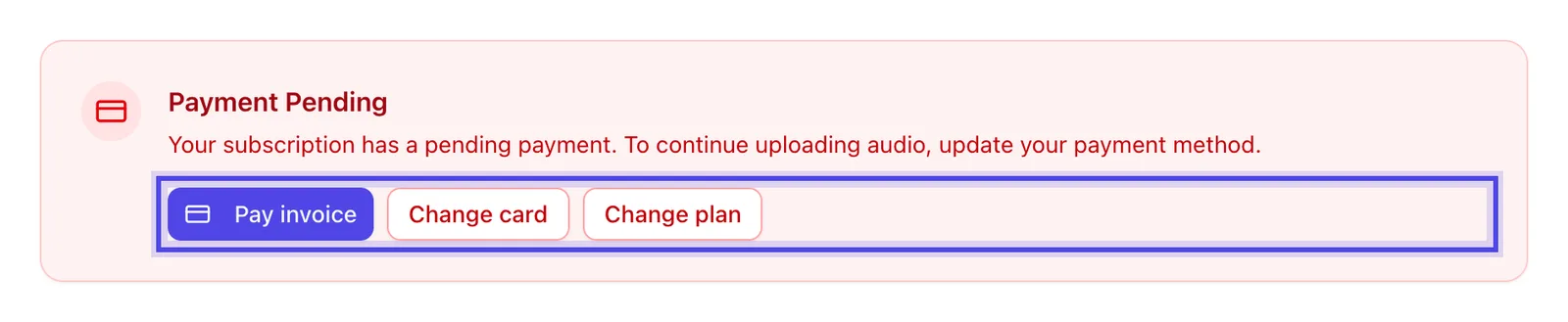
App screenshot Pay invoice, Change card and Change plan, in the Payment Pending notice.
Optional steps
You don't need these steps to finish the task. Use them if you want.
-
OptionalPay with Pix
If you pay with Pix Automático, the notice says the Pix Automático charge didn't go through and that the bank tries again over the next few days. To sort it out now, click Pay now with Pix, which generates a QR code to pay right away, or Change plan.

App screenshot The notice of a Pix Automático charge that didn't go through, with Pay now with Pix.