Skip to content

How to change plans

Updated

Short answer

On the Subscription page, click Manage subscription and then Update plan. Choose Monthly or Annual and click Change to on the plan you want. When you move up, the price difference is charged right away; when you move down, the credit is applied right away.

Step by step

  1. Step 1: Open Update plan

    On the Subscription page, click Manage subscription and then Update plan.
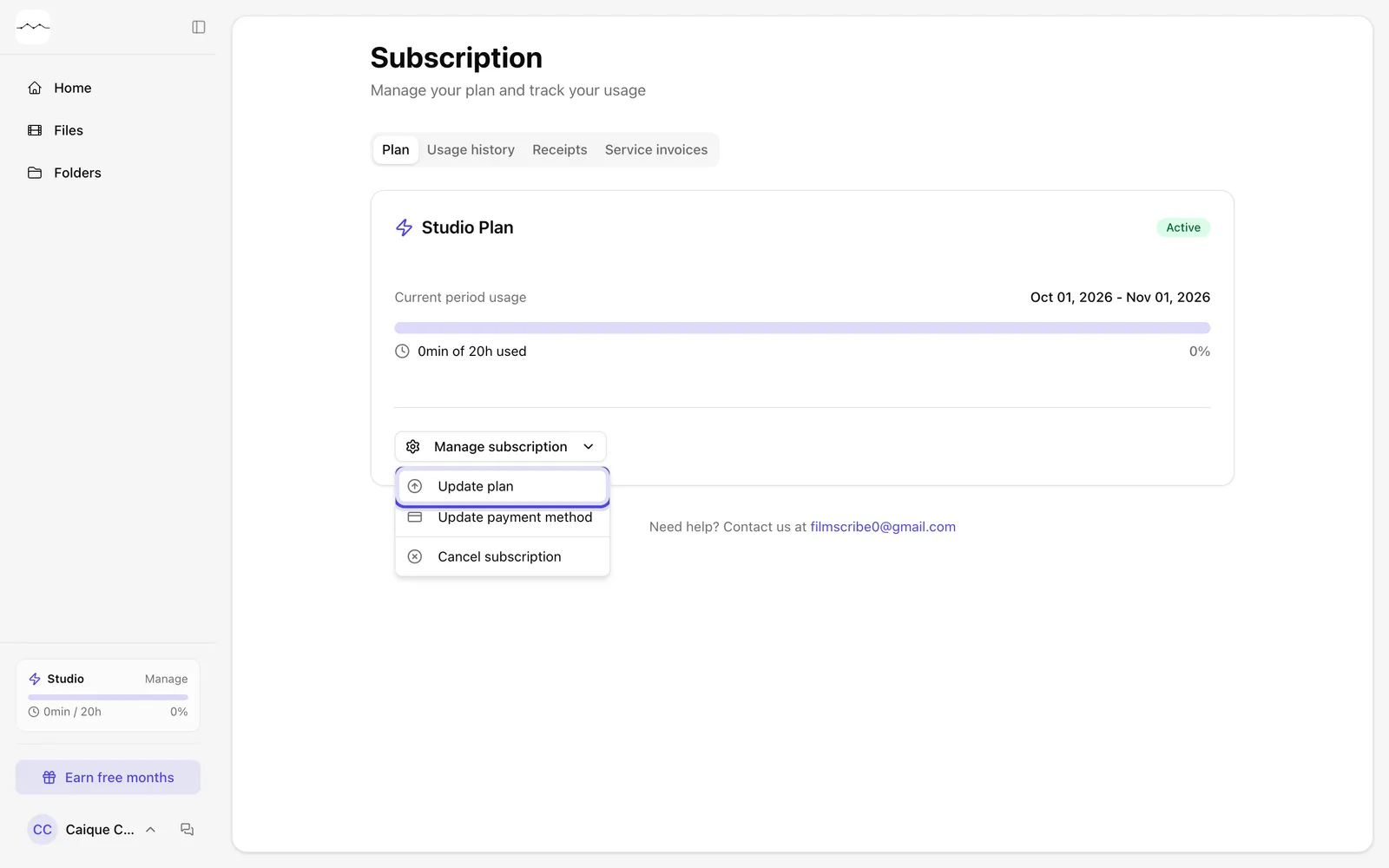
    The Manage subscription menu.
    App screenshot The Manage subscription menu.
  2. Step 2: Choose the plan

    In the Update Plan window, choose Monthly or Annual and click the change button on the plan you want. The change takes effect right away.
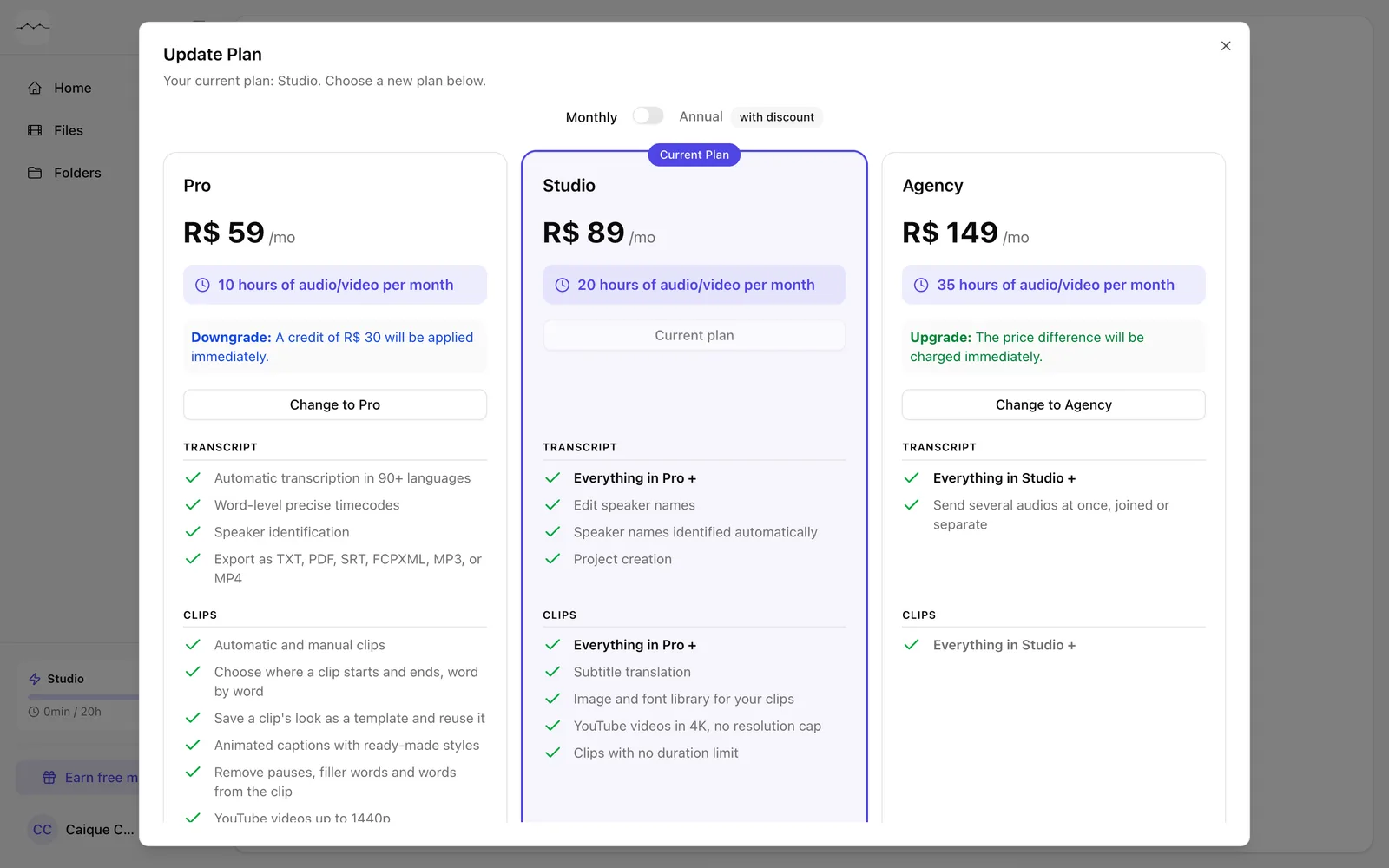
    The Update Plan window, with the plans and prices.
    App screenshot The Update Plan window, with the plans and prices.

Frequently asked questions

Do I lose my files when I change plans?

No. Your files stay in your account.

Which plan has the most hours?

10 hours a month on Pro, 20 hours a month on Studio and 35 hours a month on Agency.

How is the annual plan charged?

In a single charge for the whole year.

What if I pay with Pix?

On Pix Automático, moving down a plan changes right away and what was left becomes credit on the next charges. Moving up or switching between monthly and annual generates a QR code that pays the new plan today, minus the days left on the current one.

Still need help?

Talk to us. We answer on WhatsApp and by email.

Your next story is already waiting.

Upload a file or paste a YouTube link and see the transcript, chapters and clips from your own recording.