
How to track a file's processing

After you start, the file's page shows the overall progress and each step, from the transcription to the clips. You can close the page: we send you an email when the file is ready. In the Files list, the status shows Processing and then Completed.
Step by step
-
Step 1: Track the steps
After you start, the file's page shows the Overall progress and the steps, such as the upload, the transcription and, for video, picking the best clips.
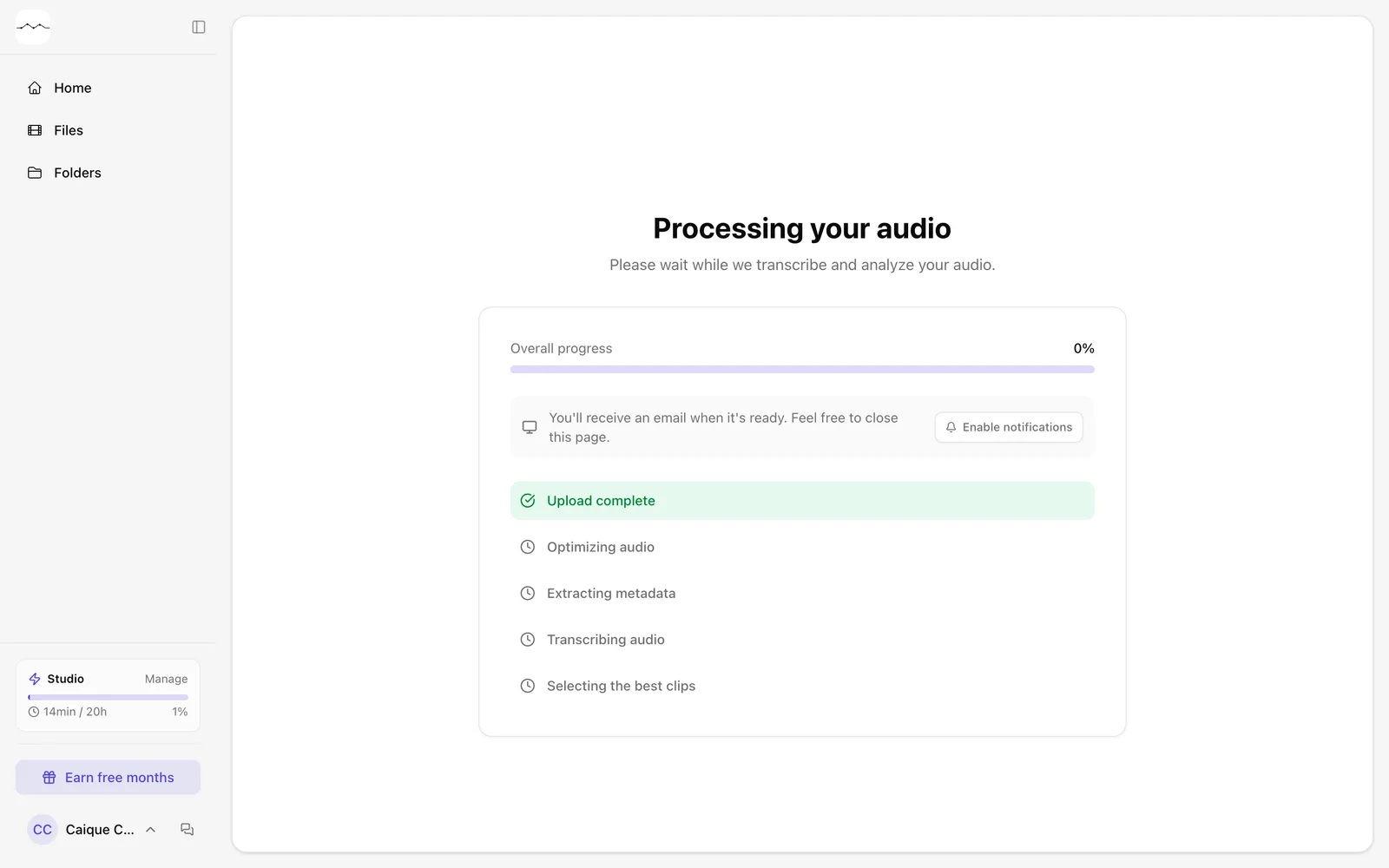
App screenshot The page of a file being processed. -
Step 2: Close the page, if you like
You can close the page: we send you an email when the file is ready.
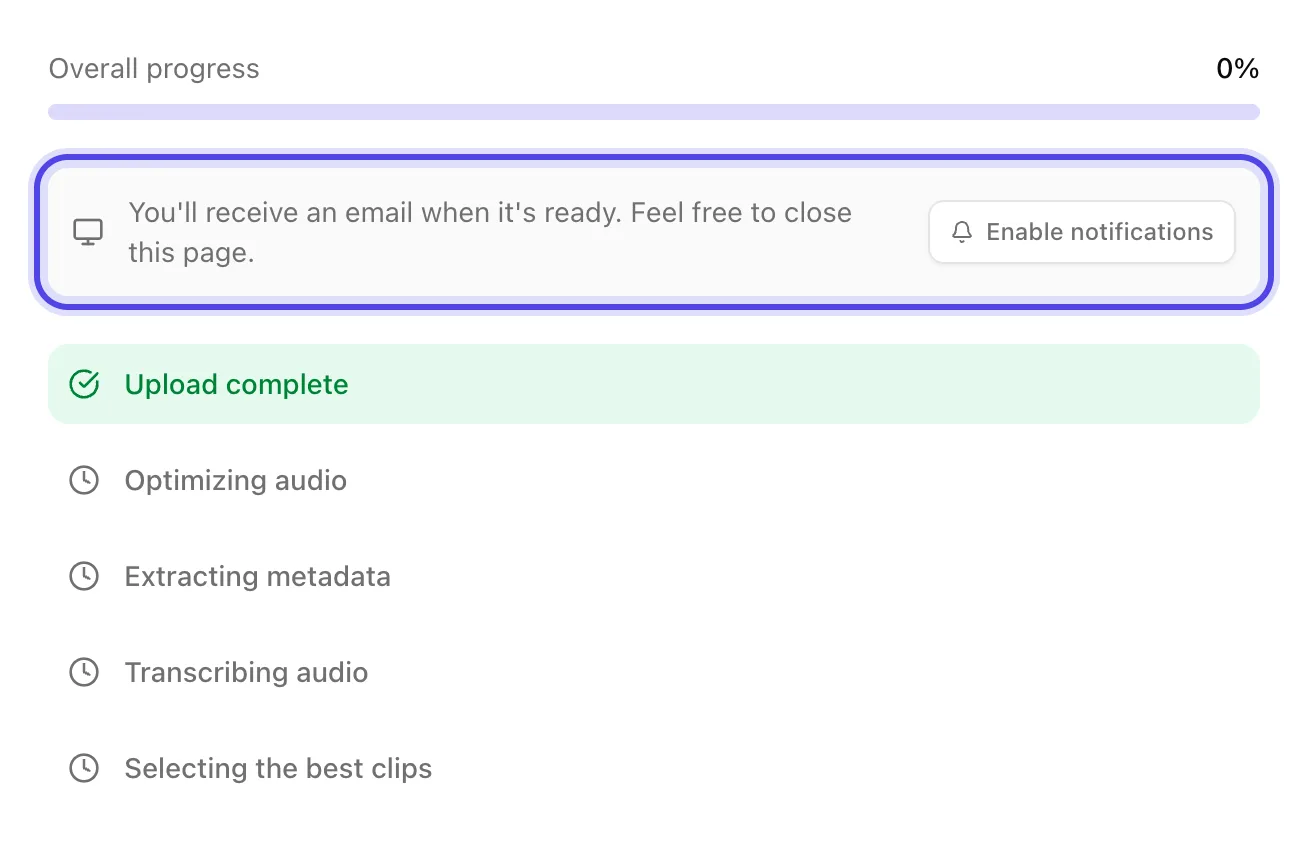
App screenshot The notice that we send an email when the file is ready. -
Step 3: See the status in the list
In Files, each file shows its status: Processing while we work and Completed when it's done.
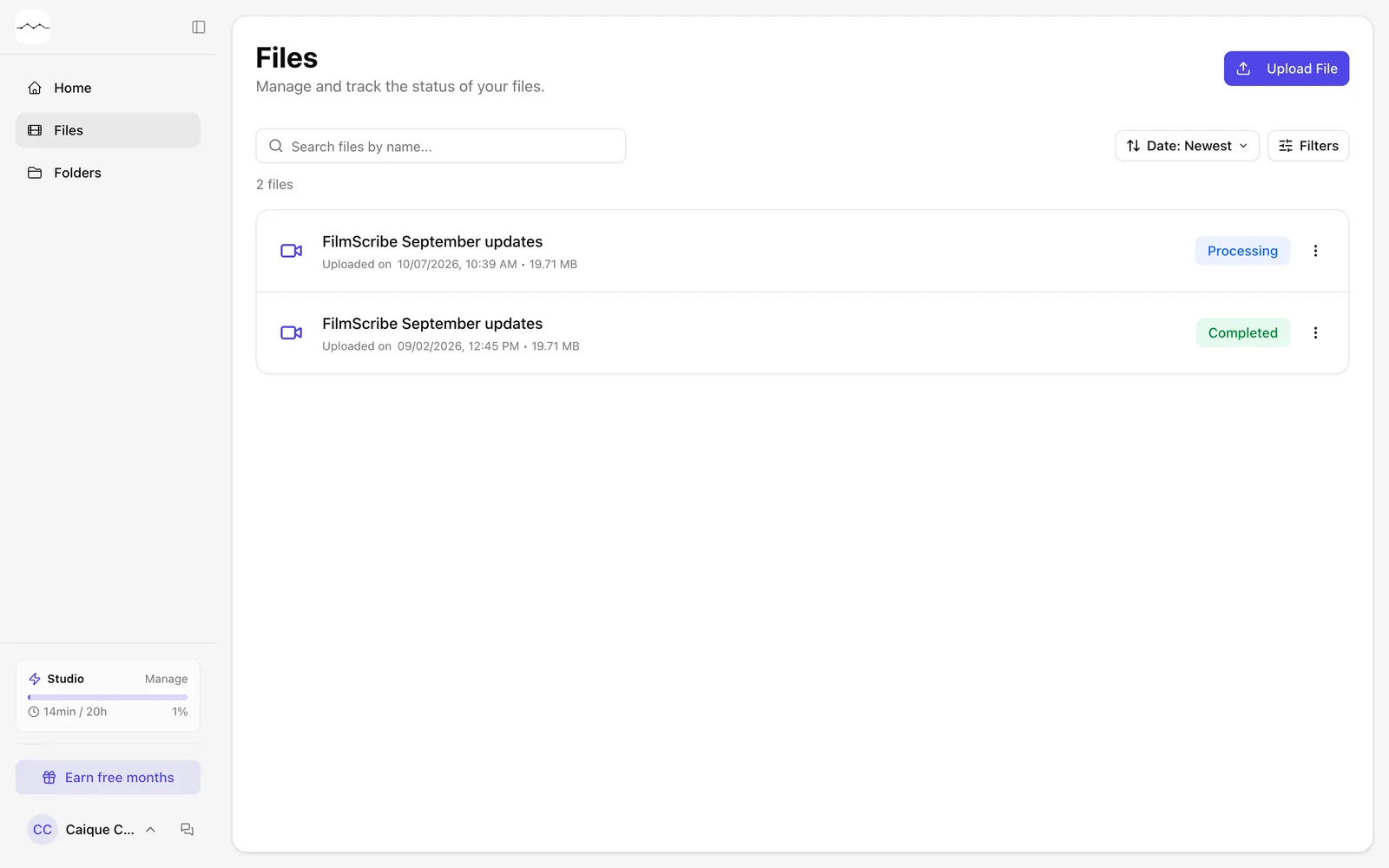
App screenshot The Files list, with one file Processing and another Completed.
Optional steps
You don't need these steps to finish the task. Use them if you want.
-
OptionalGet a browser notification
On the file's page, click Enable notifications to get a browser notification when it's done.
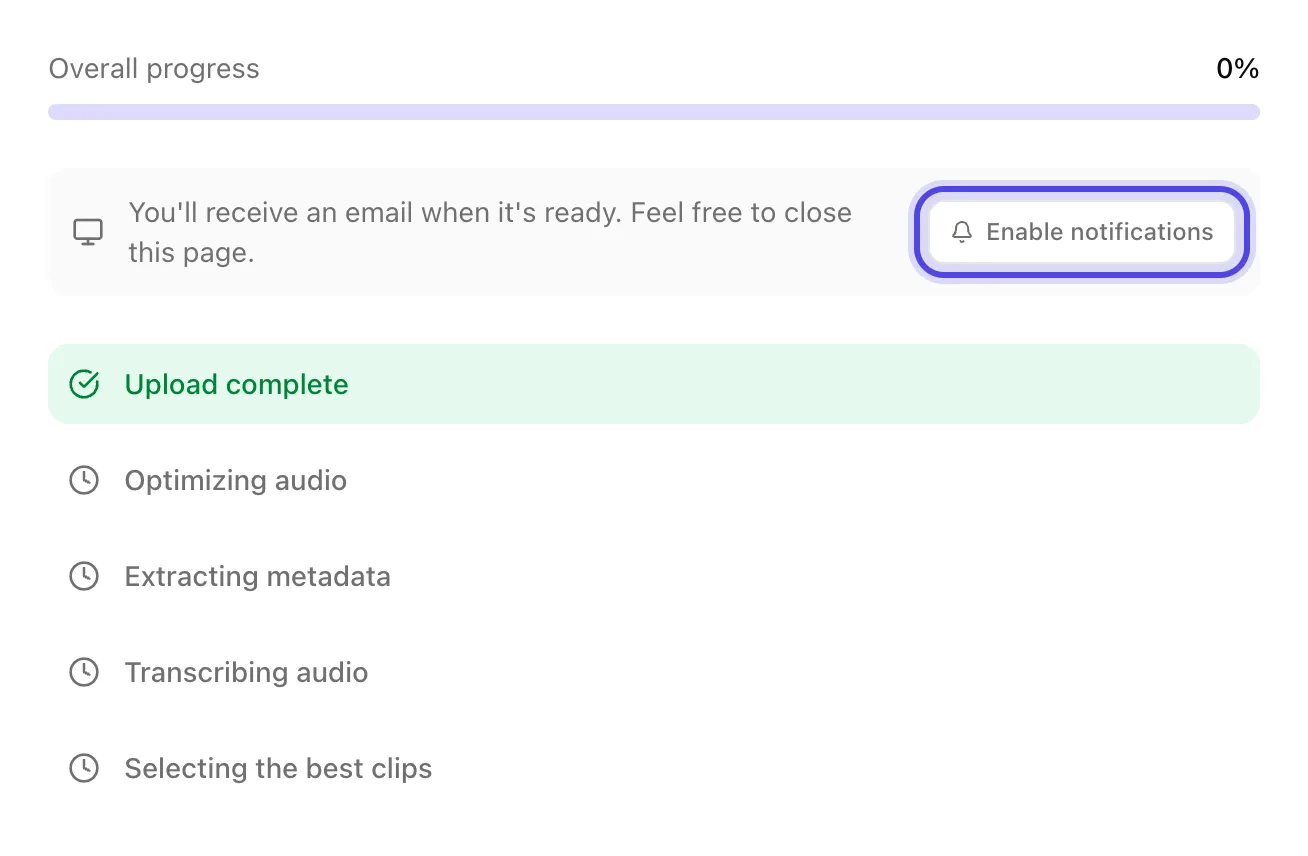
App screenshot The Enable notifications button, on the file's page. -
OptionalContinue a file with no speech
If the file has only music, sounds, or silence, the page shows We didn't find any speech in this file. Click Continue without transcript to watch it, download it, and make clips by hand. Continuing uses the file's hours. If you uploaded the wrong file, click Upload another file.
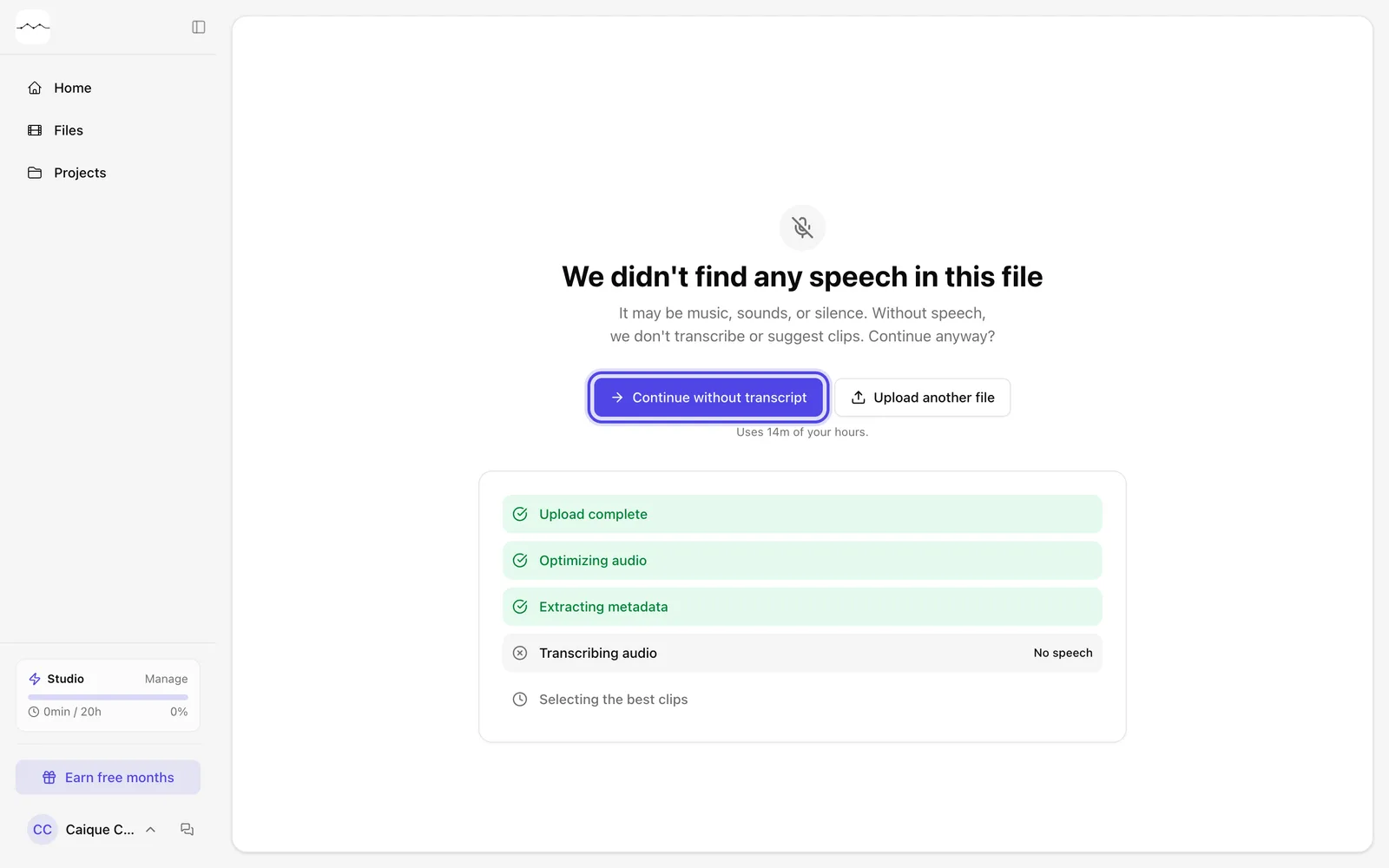
App screenshot A file with no speech, with Continue without transcript and Upload another file.